Image to SVG: AI Image Vectorizer
Upload a PNG, JPG or WebP picture and get back a real SVG file made of clean vector shapes. Vectorize logos, icons and illustrations in seconds, then scale them to any size.
Drag & drop or browse
PNG, JPG, JPEG or WEBP (max 10MB each)
0/1 uploaded
JPG, PNG or WebP, up to 10 MB. Logos, icons and flat illustrations give the cleanest SVG.
Try an example
Original on the left, AI-converted SVG on the right. Tap an example to load it, then press Convert to SVG.
Vectorize Image Examples: Before and After
Each SVG below was made with this converter from the picture on the left, with the Detailed setting and no manual cleanup. The source pictures are AI-generated.
Logo to SVG
A round coffee shop logo with steam, a cup and two lines of text. The lettering comes back as crisp vector shapes, ready for signs, cups and menus.
Download sample SVG

Icon to SVG
A flat fox mascot icon. Each color area becomes its own shape, so the outline, face and ears can be recolored separately.
Download sample SVG
Illustration to SVG
A flat landscape with mountains, pine trees, a lake and a setting sun. The limited color palette is kept, with smooth edges on every layer.
Download sample SVG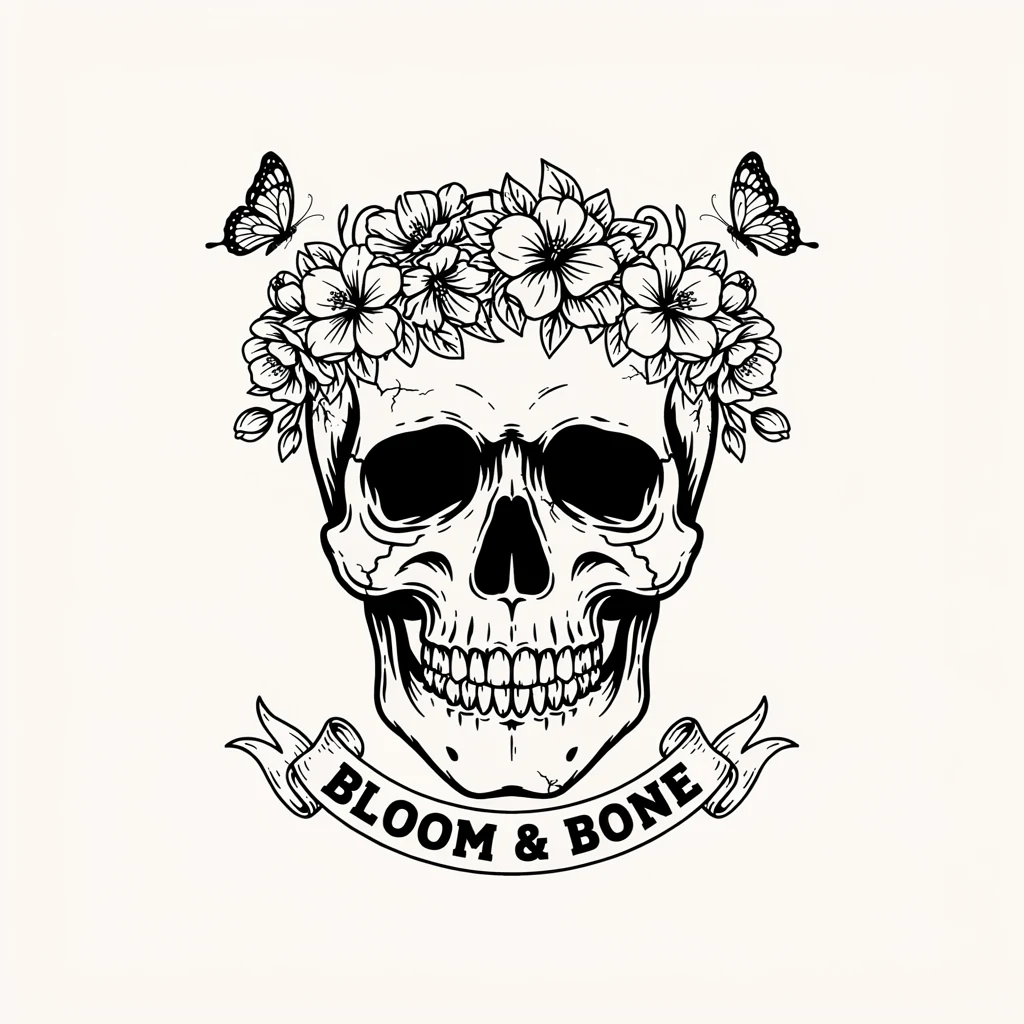
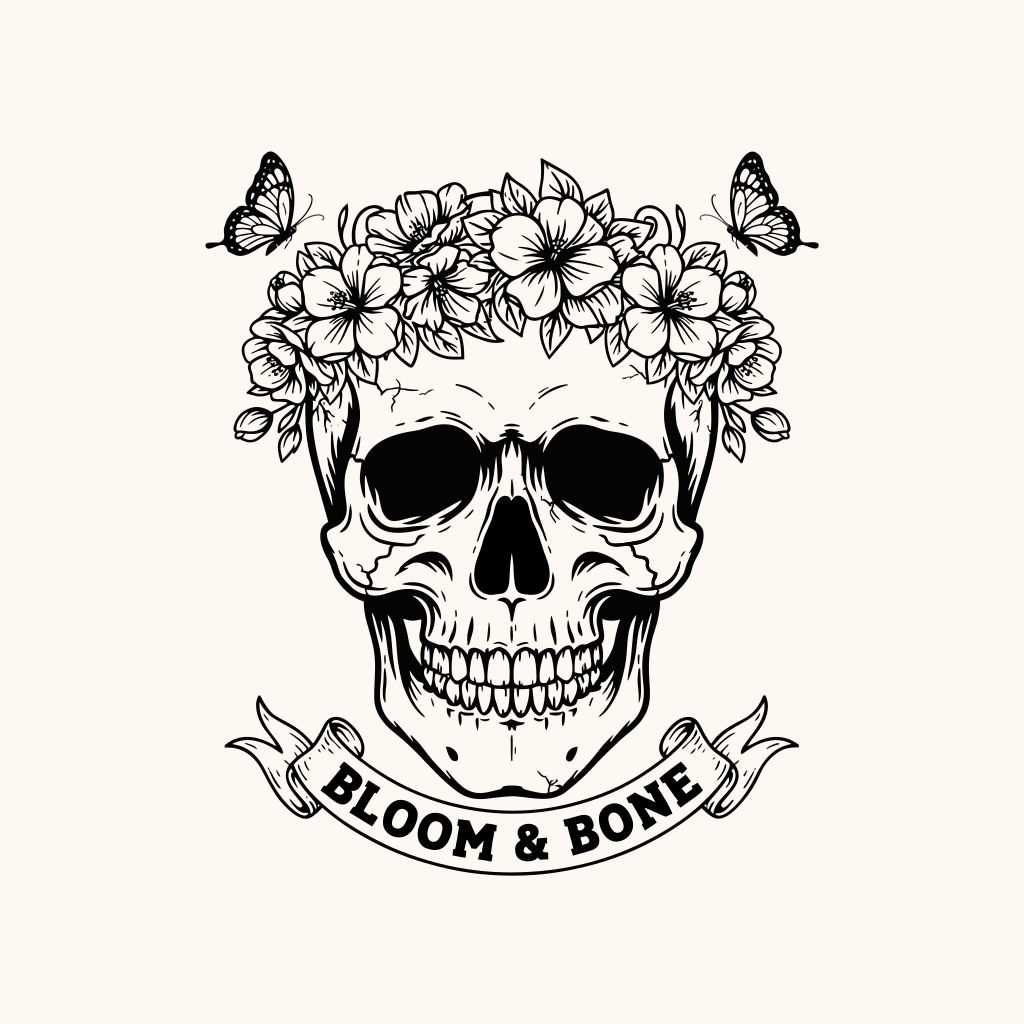
T-shirt graphic to SVG
A detailed black and white skull with a flower crown and a banner. Thin ink lines and the banner text are traced into vector paths for screen printing.
Download sample SVGZoom in 5x: pixels vs vector
The same part of the flower crown, enlarged five times. The original image turns soft, the SVG stays sharp because it is redrawn at every size.
PNG to SVG Converter
PNG is the most common format for logos, icons and graphics, but it is made of pixels and gets blurry when you enlarge it. Upload a PNG here and the AI redraws it as an SVG made of vector paths, so you can use the same file for a favicon and a billboard.
- Convert PNG to SVG or vector in one step, no manual tracing
- Flat colors and hard edges in logos and icons come out clean
- Get a standard .svg file you can open in any vector editor or use on the web
JPG to SVG
JPG files often have compression noise around edges and text. The AI vectorizer reads the shapes behind the noise, so a JPG logo or drawing becomes a smooth SVG instead of a copy of the artifacts.
WebP to SVG
Saved a graphic from a website as WebP? Upload it directly. WebP is converted to SVG the same way as PNG and JPG, with no need to change the format first.
Vectorize a Logo for Print, Embroidery and Merch
Printers, sign makers and embroidery shops usually ask for a vector logo. If all you have is a PNG or JPG from a website or an old file, vectorize the logo here and send them an SVG.
- Print business cards, flyers and banners at any size without pixelation
- Give embroidery and screen printing shops clean shapes with solid colors
- Put your logo on t-shirts, mugs, stickers and other merch
- Recolor the logo or change one part by editing the vector shapes
Tip: for a logo with few colors, try Simple. It gives fewer, cleaner shapes that are easier to cut, stitch or recolor.
How to Convert an Image to SVG or Vector
Three steps to turn a picture into an SVG, right in your browser. No software to install.
- 1
Upload your image
Choose a JPG, PNG or WebP file up to 10 MB, or tap one of the examples.
- 2
Pick Detailed or Simple
Detailed keeps fine lines and small parts. Simple uses fewer, simpler shapes for a cleaner look.
- 3
Convert and download the SVG
Press Convert to SVG. When the vector is ready, press Download SVG. The result is also saved to My Creations.
Tips for a cleaner SVG
- Use the largest, clearest version of the image you have. Small, blurry files lose detail before vectorizing even starts.
- Logos, icons, line art and flat illustrations convert best. Photos turn into flat color shapes with a poster-like look.
- A plain background is easier to remove later. The background comes back as its own shape that you can delete in a vector editor.
- If the result has more shapes than you need, run the same image again with Simple.
Why Use This AI Image Vectorizer
Made for turning flat artwork into vector files you can actually use.
AI Vectorization, Not Pixel Tracing
Instead of following every pixel, the AI redraws the shapes it sees. Curves come out smooth and edges stay clean, even from a low quality JPG.
Editable Vector Paths
The SVG is made of separate filled shapes. Open it in a vector editor to change colors, delete the background or move parts around.
Scale to Any Size Without Blur
Vectors are redrawn at every size, so the same file works for an app icon, a website header and a large print.
Great for Logos, Icons and Illustrations
Flat colors, bold outlines and lettering are where vectorizing shines. Detailed line art like tattoo flash and t-shirt graphics works too.
Two Levels of Detail
Detailed keeps the small parts of your artwork. Simple reduces it to fewer shapes for a cleaner look.
Saved to My Creations
Every SVG you make is kept in your account, so you can come back and download it again later.
Image to SVG FAQ
Questions people ask before converting an image to a vector.
It turns a pixel image such as a PNG, JPG or WebP into an SVG, a vector file made of shapes and paths instead of pixels. Vector files stay sharp at any size and can be edited shape by shape. This converter uses AI to redraw the image as vector shapes.
Upload a JPG, PNG or WebP image, choose Detailed or Simple and press Convert to SVG. When the vector is ready, it appears next to the tool. Press Download SVG to save the .svg file. You need an account to convert, and each conversion uses 20 credits.
Upload the PNG and press Convert to SVG. The AI vectorizer redraws the PNG as vector paths and gives you an SVG file to download. Logos, icons and graphics with flat colors give the cleanest result.
Yes. JPG, PNG and WebP files up to 10 MB are supported. GIF files are not supported, so save a frame as PNG first.
Yes, logos are one of the best uses for this tool. Upload the logo image you have, even a small PNG from a website, and download it as an SVG for print, embroidery, signs or merch. For simple logos with few colors, the Simple setting gives fewer, cleaner shapes.
You can, but photos are not what vectors do best. A photo becomes a set of flat color shapes with a poster or illustration look, not a photo-realistic copy. For the cleanest SVG, use logos, icons, drawings and flat illustrations.
Smooth gradients turn into bands of flat color. Very small text and hairline strokes can merge, thicken or disappear, so check names, numbers and fine print before you use the file. Busy backgrounds add many extra shapes, so crop or remove them first. For the best result, upload the largest, sharpest version of the image you have.
Detailed keeps finer lines and small details from your image. Simple uses fewer and simpler shapes, which gives a cleaner look and is easier to edit. Both cost the same, so you can try both on one image and keep the one you like.
Yes. The SVG is made of separate filled vector shapes, so you can open it in any vector editor or design tool to change colors, delete the background shape, resize parts or combine it with other artwork.
SVG is the file type most cutting and engraving software imports. Keep in mind that the background is included as its own shape, so delete it before cutting, and that detailed artwork can produce many small pieces. The Simple setting gives fewer shapes that are easier to cut.
Each conversion uses 20 credits, with either setting. New accounts do not include a free conversion. You get credits with a plan or a credit pack on the Pricing page. If a conversion fails, the credits go back to your account automatically.
Turn Your Image Into an SVG
Upload a logo, icon or illustration and download a clean vector file in seconds.
More tools: AI Photo Editor · AI Object Remover · Edit Text in Image · Pricing